Posts

At Last... After Effects!
Image
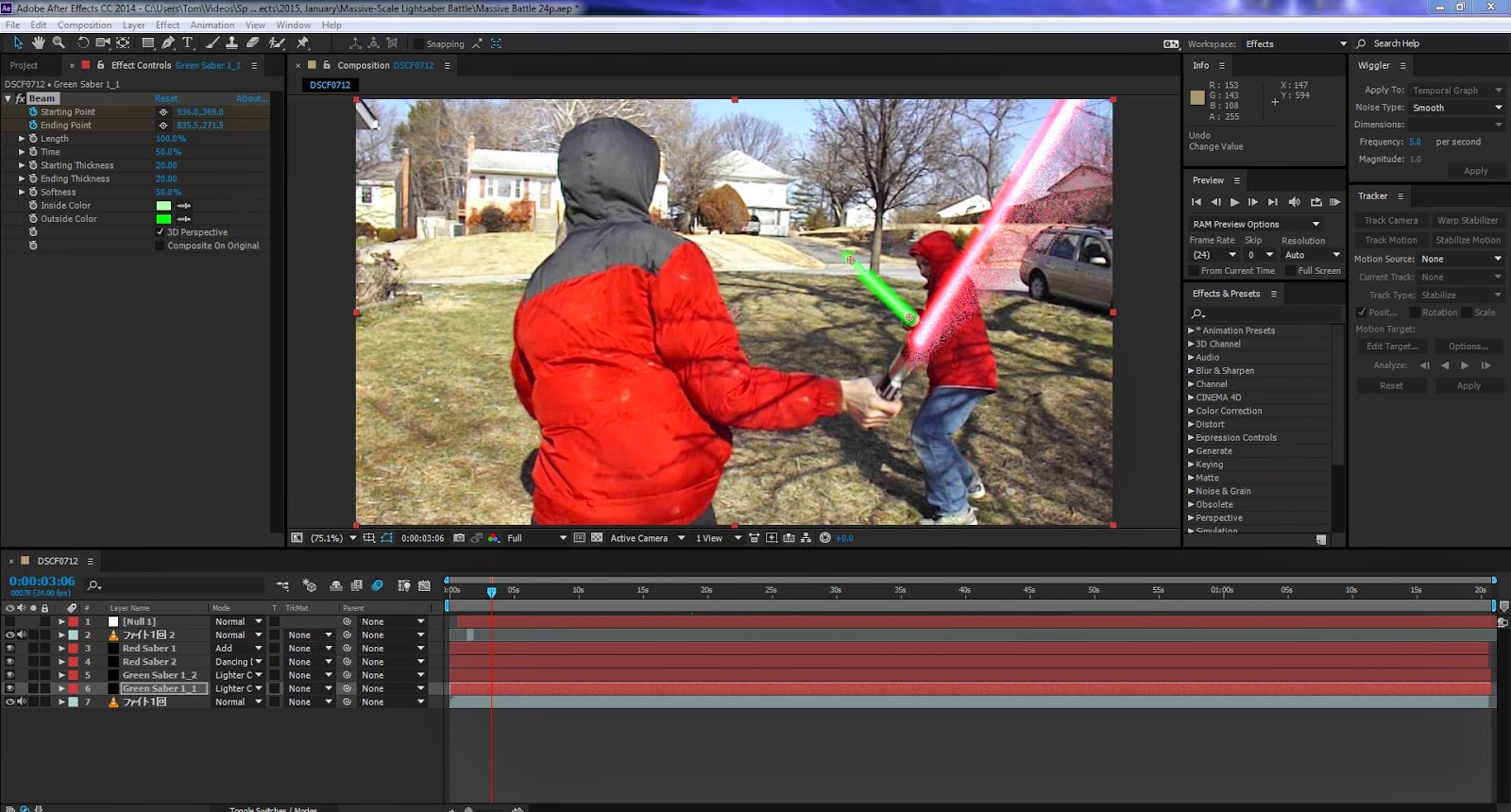
This is going to be a longer post than what I normally do, but don't worry, there's a movie.  Finally, after a while, I've learned much more on After Effects.  And now, I've finally decided to get started putting it on the blog... just as soon as my new college semester is starting.  Excuse me for a moment... *Whack!* Ahem.  After Effects, kind of like Photoshop for videos, is really pretty amazing.  Used on a huge amount of big-budget movies, I've done a lot with it, and I've recently learned that I've barely scratched the surface! Here's a screenshot of the basic area (while working on a yet uncompleted/test project):  There's a whole lot of stuff in this program, but in order to do anything with it, it's good to know about three really important things: 1. The Preview panel.  It's usually on the right side of the interface, but if it doesn't appear at all, you can bring it up by pressing Window-->Preview (if it's ch...

I Was Bored in Photoshop Class One Day, Sooo...

Image
I decided to see what  Bionicle would look like in live-action!  Does anyone else want to not see a movie of this?  Because I'm not making a movie of this.

College 2014: Final Assignment

Image
Finally! Now I have all my assignments on the blog before my next semester starts! My last assignment was an interesting one divided into five parts: Step 1: Make a Photoshop composition.  Here it is: Step 2: Take the previous project, take it a little bit further, and save it separately.  I decided to use the "painting" technique, only on different parts of different layers. Step 3:  Take product #2 and take it even further, saving it in a similar fashion.  Step 4: Go back to #1 and (how did you guess?) take it further, this time in a different direction.   Finally, step 5 (am I detecting a pattern here?): Take #4 and modify it somewhat, saving it as #5. I used masks and the clone tool + spot healing brush tool for most of the modification, although for #5 I used two tricks I learned from a seminar by Dr. Will Hammond (the Will Hammond who invented masking in Photoshop!): Copying parts of the background onto new layers and giving ...

College: Artistic Selfies Part II

Image
I now present... live action selfies!  All the monsters were done using Maya, which I don't know much about how to do, but some experimentation made the look work.  I did the energy beams in two layers: first, make a new layer, select a triangular shape (I did it using the polygonal lasso tool) and color it white with the brush tool, then make another layer (Shift+Ctrl+N) and place it under the first layer.  After that, go to the brush tool, set the hardness to zero and choose a color and paint on the white part!       These are the other two artistic selfies I did for my (now complete) college class, and the second, "Dimensional Shift," was accepted into and was shown in a student art convention my college held!  There's a lot I've been doing (mostly with Photoshop and After Effects), and I can't wait to get it all on the blog!  I'll try to post a bit more frequently until then.  Bye for now!

Fun with Filters (?)

Image
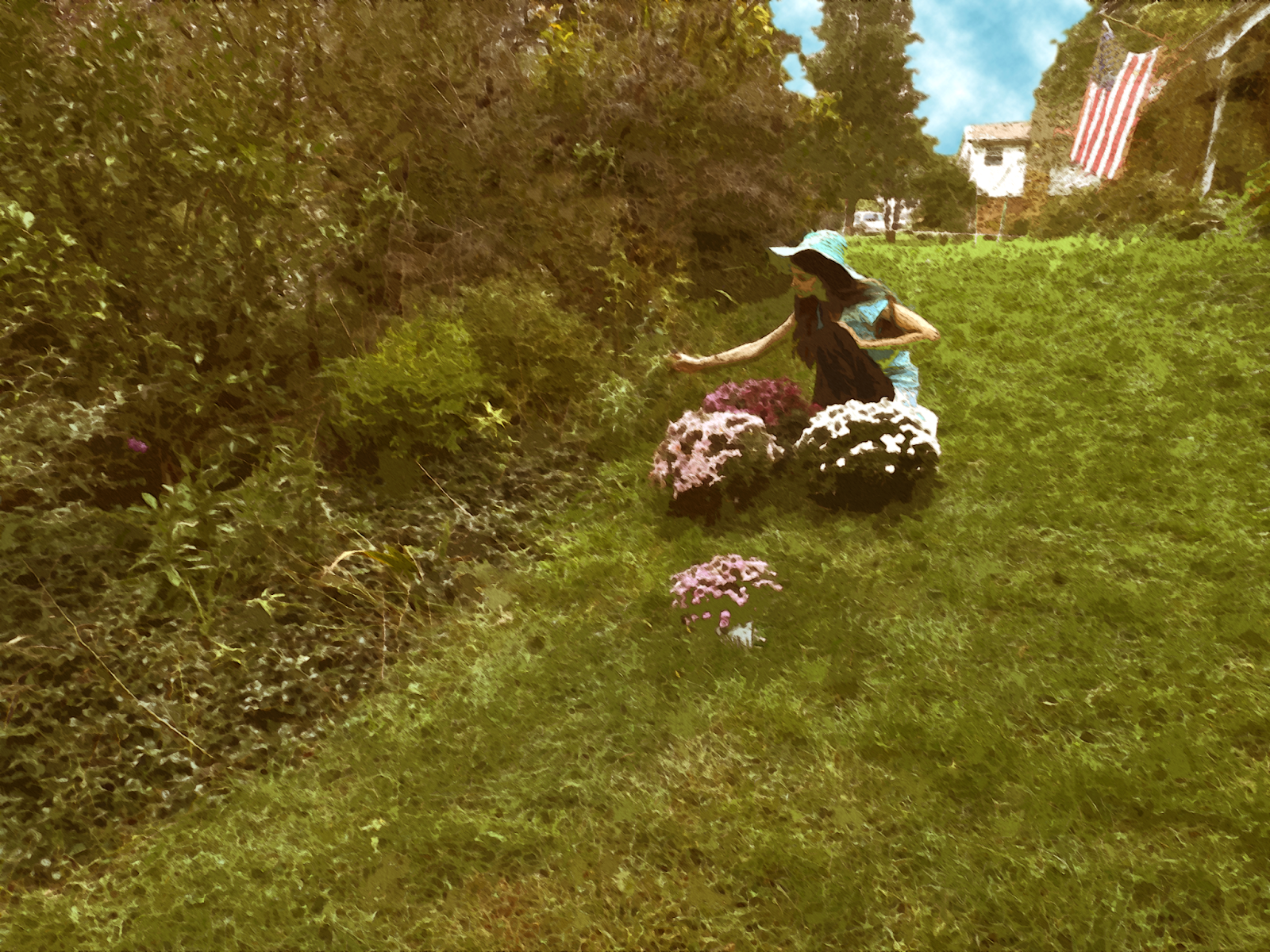
Okay, I admit, that is likely the worst title I've ever put on this blog.  Anyway, as the title suggests, I've been working on filters as part of my 2nd assignment for college: emulating other artists' artwork.  First, I tend to make what I'm working with a Smart Object (right click on the layer, then press "Convert to Smart Object") so I can modify the results later, but doing so isn't absolutely necessary. To make my stuff look like other artists' paintings, I was taught that (in Photoshop) pressing Filter -> Filter Gallery and selecting the "cutout" option, dropping the number on colors from a few million down to 8 or even 3, was a good start.  After that, selecting Filter->Oil Paint (which sadly isn't available on some older and newer versions of Photoshop, but it's on CS6) gives it a paint-like texture, and after that it's a good idea go to the Filter Gallery again and give it an "angled strokes" filter and ...

More Matteing!

Image
I've been doing a bit more with After Effects!  Although it isn't a perfect matting, I've still done something.  Anyway, here's my latest one of us Mongolia! Although the background was only a still picture because I couldn't find a video with a camera less than 300 feet off the ground, I was still able to add wind noises, remove the audio noise with Audacity (basically PhotoShop for audio), and create the effect of snow!  Next up will probably be Japan and India! 

College Assignments

Image
So as it turns out, my college class which I thought was on photography alone has a lot to do with Photoshop as well.  And my first assignment was to take five selfies and Photoshop them.  The only problem is that unlike most teenagers, I actually dislike selfies.  That said, the fact that my teacher phrased them as "self portraits" made it a bit better.  None of the pictures from this assignment were taken on a smartphone.  I'll only show three for now.  This first picture doesn't look like a selfie--in fact, I hadn't originally intended it as one--, but the teacher approved it.  I mostly took a picture of a swimming pool roof and altered the colors, then took a zoom-in picture on one of one of the lights and arranged those in a pattern, faking the"overlap" of the lights in the middle by putting a mask over (making invisible) a part of one light.  The second one is more of a noticeable self-portrait.   I added the shadow manua...